UX Lesson: Be Careful with Scrolling
I wanted to turn on wi-fi sync between my iPhone and my new MacBook and I just wasn’t able to find how to do it. I looked into iTunes and found nothing. So I asked my friend and he said it can be done in iTunes. I was like what the hell that’s the first place where I was looking for it.
The problem is that I opened iTunes and saw this.
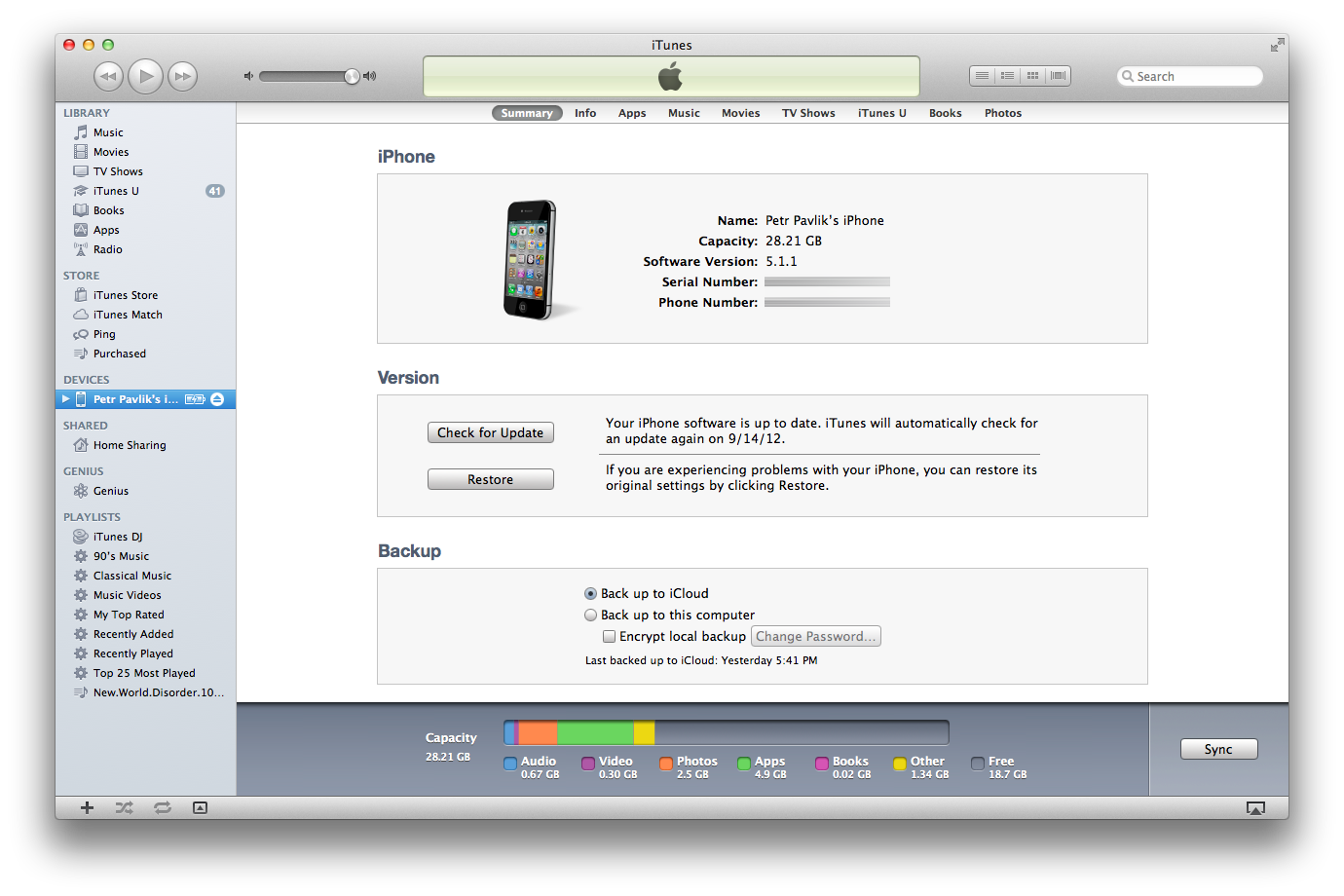
I did not realise that I can scroll down to see additional content where I can enable the wi-fi syncing.
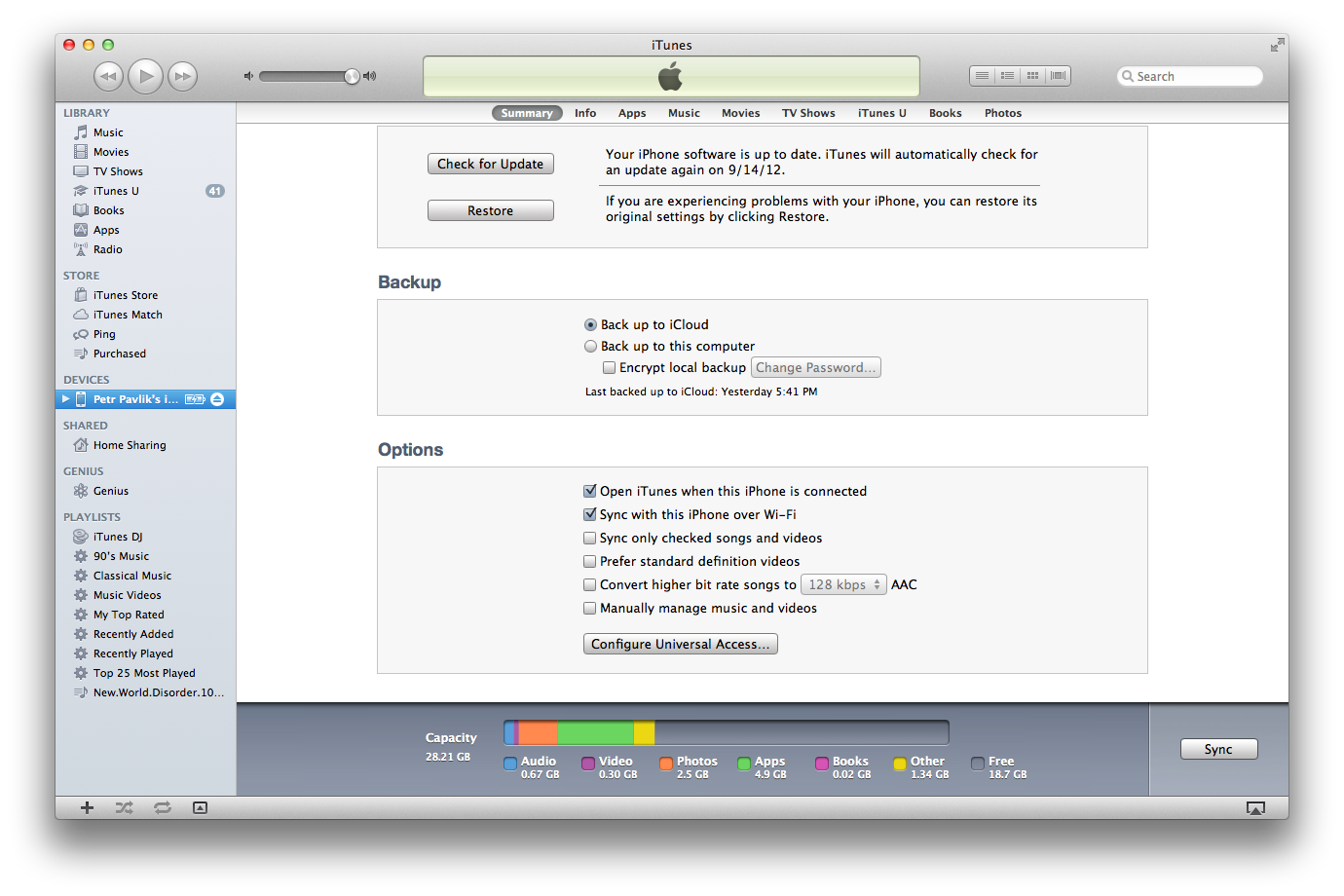
There is always the option that I’m an idiot but I also have the experience that people are having this issue a lot. If the structure of a content on the screen is very distinct, people don’t know that they can scroll the content. On the other hand, if the content is very homogenous like a list of email previews or a list of tweets, people don’t seem to have a problem to realise that they can scroll the content.
Adding Copy Functionality to UITableView
iMessage on iPhone allows you to copy the content of a message by long pressing on a cell. This article shows you how to mimic this behaviour on iOS 5+.
Implementing such functionality used to be pretty hard (http://stackoverflow.com/questions/1146587/how-to-get-uimenucontroller-work-for-a-custom-view) but in iOS 5, all you have to do is to implement following 3 delegate methods for your UITableView.
– tableView:shouldShowMenuForRowAtIndexPath:
– tableView:canPerformAction:forRowAtIndexPath:withSender:
– tableView:performAction:forRowAtIndexPath:withSender:
Implementation of the copy functionality can look something like this.
-(void)tableView:(UITableView*)tableView performAction:(SEL)action forRowAtIndexPath:(NSIndexPath*)indexPath withSender:(id)sender {

    UIPasteboard* pasteboard = [UIPasteboard generalPasteboard];

    Message* message = [self.messages objectAtIndex:indexPath.row];

    pasteboard.string = message.text;
}

-(BOOL)tableView:(UITableView*)tableView canPerformAction:(SEL)action forRowAtIndexPath:(NSIndexPath*)indexPath withSender:(id)sender {

    if (action == @selector(copy:)) {
        return YES;
    }

    return NO;
}

-(BOOL)tableView:(UITableView*)tableView shouldShowMenuForRowAtIndexPath:(NSIndexPath*)indexPath {
    return YES;
}
Twitter-like Notification
I really like how inapp notifications work in the latest version of Twitter for iPhone (July 2012). This approach also seems to be very easy to implement so I decided to create a very easy example showing one way how this can be done.
The trick is to add a label or whatever you want to application’s window. That’s an easy task since UIWindow is a sublass of UIView. Once you have this done, you can easily hide the native statusbar and display the label.
//
//  NotifWindow.m
//  TwitterLikeNotification
//
//  Created by Petr Pavlik on 7/11/12.
//  Copyright (c) 2012 Petr Pavlik. All rights reserved.
//

#import "NotifWindow.h"

@interface NotifWindow ()

@property(nonatomic, strong) UILabel* notificationLabel;

@end

@implementation NotifWindow

@synthesize notificationLabel = _notificationLabel;

- (void) showNotificationWithText:(NSString*)text {

    if (!self.notificationLabel) {
        self.notificationLabel = [[UILabel alloc] initWithFrame:CGRectMake(0, 0, 320, 20)];
        self.notificationLabel.textColor = [UIColor colorWithRed:1.0 green:1.0 blue:1.0 alpha:0.8];
        self.notificationLabel.backgroundColor = [UIColor blackColor];
        self.notificationLabel.textAlignment = UITextAlignmentCenter;
        self.notificationLabel.font = [UIFont boldSystemFontOfSize:13.0f];
        [self addSubview:self.notificationLabel];
    }

    self.notificationLabel.text = text;

    self.notificationLabel.frame = CGRectMake(0, -20, 320, 20);

    [[UIApplication sharedApplication] setStatusBarHidden:YES withAnimation:UIStatusBarAnimationSlide];

    __weak NotifWindow* weakSelf = self;

    double delayInSeconds = 0.5;
    dispatch_time_t popTime = dispatch_time(DISPATCH_TIME_NOW, delayInSeconds * NSEC_PER_SEC);
    dispatch_after(popTime, dispatch_get_main_queue(), ^(void){

        [UIView animateWithDuration:0.5 animations:^{
            weakSelf.notificationLabel.frame = CGRectMake(0, 0, 320, 20);
        }];

    });

    delayInSeconds = 4.0;
    popTime = dispatch_time(DISPATCH_TIME_NOW, delayInSeconds * NSEC_PER_SEC);
    dispatch_after(popTime, dispatch_get_main_queue(), ^(void){

        [UIView animateWithDuration:0.5 animations:^{
            weakSelf.notificationLabel.frame = CGRectMake(0, -20, 320, 20);
        }];

    });

    delayInSeconds = 4.5;
    popTime = dispatch_time(DISPATCH_TIME_NOW, delayInSeconds * NSEC_PER_SEC);
    dispatch_after(popTime, dispatch_get_main_queue(), ^(void){

        [[UIApplication sharedApplication] setStatusBarHidden:NO withAnimation:UIStatusBarAnimationSlide];
    });

}

@end
And this is how it can be used.
- (IBAction)showNotification:(id)sender {

    NotifWindow* notifWindow = (NotifWindow*)self.view.window;
    [notifWindow showNotificationWithText:@"Nice!"];

}
Please note that this is a very simple example. If you want to implement such functionality into your app, you shout take care of things like handling of landscape mode or queuing of notifications.
 Petr Pavlik